|
What you have prepared using the Q & A editor is not what the end-user will see when he or she selects a book to which an Interview has been attached. A friendlier screen will appear. And once you have completed (even if you are just starting the Q & A editing process, the Interview will appear). a Pathagoras Q & A setup, the Interview screen will appear automatically when the user selects the book for a document assembly session. These are the steps.
| (1) | Click Document Assembly and then click the book for which you have been creating the Interview. |
| (2) | Click the Next button. Instead of the typical clause selection screen, you will see a Q&A screen roughly reflecting the setup screen (but much ‘cleaner’). (See Figure 8.) |
| (3) | Click an answer to one (or if more questions are shown, as many as there are questions) and the click the next button. Instantly, your document is assembled. |
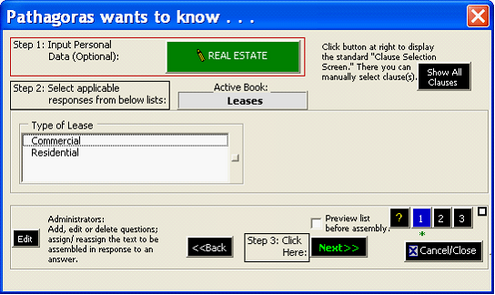
Figure 8. The actual Q & A screen the end-user will see.
(See Figure 10 for another ‘picture’ of an end-user’s interview screen.
Note a couple of important features about the end-user’s screen:
| ▪ | Step by step guidance is provided, both on screen and via the Help (“?”) button. |
| ▪ | The user can input matter data about the client/customer at the beginning of the process or may defer entering that information until later. (The “Real Estate” mask has been associated with this particular book, and its name shows in the large green button. Click the button and Pathagoras' Instant Database module is activated. Complete the IDB data form and save it. When you are ready to assemble the document, the data is ready to complete it.) |
| ▪ | While the administrator can provide up to 18 separate questions for the end-user to respond, and if all 18 questions are listed, they will show on up to 3 screens of 6 questions each. On the other hand, if only one or two questions have been composed (or remain for subsequent screens), the Q & A screen will shrink to show only what is 'left.' A green asterisk beneath the numbered buttons in the lower right corner advises the user which screens contain questions. |
| ▪ | Even thought the Interview screen now occupies the user’s screen, all clauses in the selected book are still readily available. There are two avenues to view ‘all clauses.’ |
| 1. | If the end-user simply wants to by-pass the screen altogether, he or she can click the <Show All Clauses> button. The standard Clause Selection Screen will be displayed. |
| 2. | The end-user can make all selections using the Q & A screen, but can check the ‘Preview list before assembly’ box just above the Next button. The full Clause Selection Screen be displayed (just like in 1 above, but the clauses which make up the responses to the selected ‘Answers’ will be pre-placed in the right panel. The end-user can easily augment or delete from the list to obtain the ‘best set’ of clauses. |
|


