Create from existing variables


|
Create from existing variables |
|
|
Perhaps you have a form in Excel with which you already capture data. Terrific. Now you can automate it. Steps to Create (or Modify) an Excel 'Form.' The steps here are similar to the above 'from scratch' instructions, but you want to make sure that the names of the cells match the names in your IDB mask. This is easy to accomplish. You have three ways. Manually: With a printed list of your variables in hand, manually type down Column A the names of the variables for which you wish to collect data using an Excel form. Semi-automatically: Click the IDB button to display the IDB system (as if you had pressed <Alt-D> ). Recall a mask from the list of masks at the upper left. Click the <Utilities> button and then click the Create DropDown list button. You will find it at the very bottom IDb screen. Look for the DDL in your Word menu are. (Word 2007 users, remember to look behind the AddIns tab.) Type into Column A a description name Click the dropdown list of variables that you just created and select (by clicking) the variable you want to collect first. Pathagoras immediately transfers the value from the list into the cell. intohis means you will be working in Column B. cell-naming steps, then you can 'enlarge' the text in Column A. So, after you have finished naming the cells in Column B, you can change the value in Column A from ClientName to perhaps: "Insert Client's Full Name Here:" or if you are sending the form to the client for him or her to complete, "Insert Your Full Name Here:" Click the cell you want to name and then click a name from the drop down list. Pathagoras will present 4 choices reflecting the 4 ways that you may wish to use this variable. Click in to the column immediately to the right of the one you just modified. click the same variable from the dropdown list, but this time, choose the <Insert as Cell Name> option. If the variable contains 'illegal' charaters for cell-naming purposes (see Cell Naming Rules See Naming rules below, however. To manually name a field. Click the cell you want to name. Press "Ctrl + F3" to display the Name window. It will display all existing named cells and allow you to provide a name for the cell in which the cursor current resides. Type the name. Read Tip for helpful naming feature that Excel provides.
(Alternatively to Ctrl-F3, you can click inside the “Name” box on your toolbar at the top of your screen. It will be on the left end of the formula bar, generally immediately above the top and left-most cell. When you click inside this box, you see the cell name (something like "E2"). It will be highlighted. While it’s highlighted, whatever you type will replace what’s in there, so just type a name and then hit your Enter key.)
Create Intake Form from Mask -- Totally Automatic Display the Instant Database screen and select a mask from the left side. (If you do not have a mask, create one following the steps in the main Pathagoras Help System. Click here for that screen.) Click the Setting & Tools button. Click the Create Excel 'Intake Sheet.' (Arrow in figure below points to the button.) Pathagoras will list the variable names down column 1 of a new Excel spreadsheet and name all of the cells with the best name possible (see rules below) in the second column. It will also color the second column in yellow to indicate that data should be typed there. Note: Excel cell naming rules may prevent some of your variables from being accepted as valid names. For example, a variable with two or more words, or variables with non-letter or number characters. In such cases, Pathagoras will attempt to correct the name to an acceptable one (typically adding an underscore in place of word spaces or in place of illegal characters. Pathagoras will advise you of the modification to the original name in column 3. You will then need to decide whether to keep or discard the original variable name.
Create Intake Form from Mask -- Semi-Automatic Feed the variables of the mask into a dropdown list. Once in the list, it is a simple point and click operation to move the variables into the appropriate section of the spreadsheet. Here is how to create the dropdown list: (1) Click the Setting & Tools button on the right side of the IDB screen. This reveals an Editing Tools menu at the bottom of the screen. (2) Click the Create DropDown List button found at the bottom of that list.
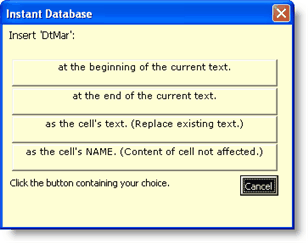
After you click the Create DropDown List entry a dropdown list containing all of the variables in the mask resided in the toolbar area of your Excel screen. To use the list, first activate the cell into which you wish to place (use) the variable. Click the variable from the dropdown list. You will be presented the following screen with the options shown. Choose the appropriate one. Repeat with other cells.
|
 When you press Ctrl-F3, Excel presumes that the value contained in the cell immediately to the left of the cell you are naming is the name you want to assign, and will propose it to you. (If the name of the adjacent cell is made up of two words, such as "Client Name", Excel will automatically place an underline (_) between the two words and propose "Client_Name".)