August 1, 2007: Version 12.1 Introduced
We are pleased to announce the release of version 12.1 and some other very exciting news for our program. We also report on several significant changes to Pathagoras' Optional Text and Instant Database features.
In this issue:
- Virginia Continuing Legal Education on-board with Pathagoras.
- Options/Optional text now presented using "{" and "}".
- IDB personal data records now saved as 'comma separated value" (".csv") files.
- IDB: Jump to end / jump to beginning.
- IDB: You can now set the maximum length of a variable to >40.
- IDB: You can now make the IDB screen wider.
- IDB: You can now limit IDB display to only those variables present in the underlying document.
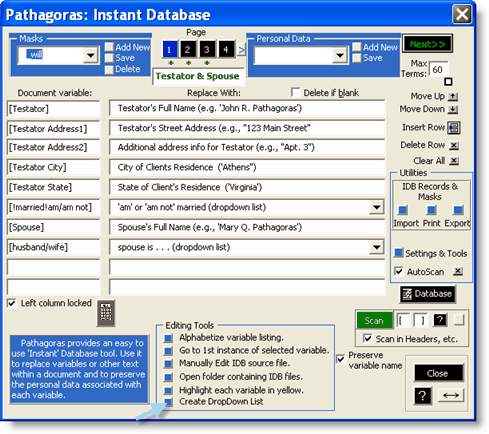
- New look to IDB Utilities. You can see more and do more directly from the IDB screen.
- IDB: Create a DropDown List of Variables. Point and click variables into your source clauses forms.
- DropDown Lists: <Insert> or <New Doc>.
- DropDown Lists: Preserve Original Format
- TermWorks: You can proceed directly to SaveAs screen
- MyPathagoras toolbar.
- Help System Update.
Big news for Pathagoras! Virginia Continuing Legal Education (VA CLE) has asked us to 'Pathagorize' its publications. And of course we have agreed! Future VA CLE materials will be published with a "Pathagorized" sticker on the cover and a reference to our site should a purchaser of the forms manuals wish to take advantage of the document automation that Pathagoras can provide.
This new relationship gave us an opportunity to study certain 'taken for granted' items. As a result, we have beefed up certain areas of the program, and modified some others. VA CLE required some changes that enhanced the program not only for potential VA CLE customers, but for you as well. They are discussed below. (The changes to Pathagoras are purely optional to current users.)
To meet the (reasonable) demands of VA CLE, we were required to keep the 'look and feel' of the 'Pathagorized' forms similar to the pre-Pathagoras versions. Current publication owners had a certain expectation about the how the materials would be presented. A radical departure would (1) confuse those who were used to the previous releases and (2) improperly convey an impression that Pathagoras was now mandatory in order to benefit from the forms.
One major challenge stood in the way of securing the VA CLE stamp of approval: "<<*Options*>>" and "<<*Optional*>>" text blocks were a problem. It simply added too much text to the forms.
(<<*Optional*>> text is 'take it or leave it' text. Pathagoras pauses at such text, highlights it and asks "Do you want to include this text in this document?" <<*Options*>> blocks allow you to set out up to five alternative selections from which to choose.)
- Pathagoras required (and still allows) the user to introduce the text block with "<<*Options*" or "<<*Optional*". The block was always closed with ">>". Having the double braces wasn't a 'deal breaker.' The presence of the terms "*Options*" and "*Optional*" was.
- Our solution was to ditch the introductory text and to use curly brackets -- i.e., '{' and '}' -- as the boundary markers. Curly brackets added no more text to the original document, yet the optional nature of the text could still be made clear. If options (multiple choice) text was intended, the characters "/OR" is used to designate the division points between one option and the next.
- Pathagoras distinguishes between *Options* and "*Optional* blocks simply by searching for the existance of the word "/OR" between the opening and closing curly brackets.
- If '/OR' exists, Pathagoras knows that it is "Options" (and the number of times '/OR' appears conveys how many options there are).
- If '/OR' does not exist, Pathagoras knows that the entire text block is 'Optional' text. Pathagoras behaves accordingly.
- If '/OR' exists, Pathagoras knows that it is "Options" (and the number of times '/OR' appears conveys how many options there are).
This {feature} is now available for all users! We have even gone one step beyond. Curly brackets are the default boundary for options/optional text, but they not the only markers that can be used. You can select any other character or character set as your own boundary markers. The only restrictions are (1) that they not be the same as the begin and end marks for your variables, and (2) they don't otherwise appear 'naturally' in your documents. (In hindsight, this solution is one that I wish that I had adopted when Optional/Options blocks were first conceive, but for those who have fully implement blocks under the previous model, rest assured that you will not have to re-do anything and that the introduction of the block with the words Options or Optional still has some benefits.)
=====================
Independently of the VA CLE project, we made quite a few other changes.
Here are the major ones.
It is BIt is now possible, and easy, to share data among other programs that can produce, or read, csv records. We have posted to the website an illustrated guide to importing and exporting .csv data. We are using TimeMatters(r) as the base for the demo, but the same basic steps would pertain to any system.
As you add more and more variables to your documents, it takes more time to get to 'the end' or 'the beginning' of the variable list as presented in the IDB. Now, if you press Shift + the 'Next Page' or 'Previous Page' button, you will be take to the very end (or the very beginning) of the entries in your IDB record.
In earlier versions, Pathagoras limited you to a variable length of 40 characters. Anything wider than that and Pathagoras would assume that the term was not a variable. Many of you have said that they routinely create variables greater than 40 characters. I have now created a setting (found under Instant Database Tools) that allows you to set the maximum number of characters and to pre-set what should happen if Pathagoras runs across a variable greater than that length.
An earlier version of Pathagoras allowed you to increase the width of the panels in the Clause Selection Screen. Now you can widen the IDB screen as well.
When a mask displays, all variables contained in the mask show on on the IDB screen. (The variables in the underlying document are noted on the IDB form by a green astersisk between the left and right columns.) Now, you can ask Pathagoras to display only the variables that are present in the underlying document. Simply click the 'Show Only Current Variables' box. That box can be found at the right of the screen.
Click the Utilities/Tools button on the IDB screen.
Two new areas on the screen will 'open up.' The first is just above (and in place of) the Utilities/Tools button. The tools in this 'upper' area allow you to import and export IDB records and to print a list of IDB variables. The tools that display in the bottom center of the screen provide powerful new features that will significant impact how you edit existing source clauses and how you create new ones.
- IDB: Create a DropDown List of Variables. Point and click variables into your source clauses forms.
You can now create a dropdown list of variables, and insert them into any form that you are 'Pathagorizing.'
Display a mask or personal data record. Click Utilities and then click the Create Dropdown List. The variables reflected therein will be transferred to a dropdown list on your screen. You can point and click any entry in the dropdown list into your document. Very quick. Very easy.
This list offers a perfect way to create forms and neuter clauses. It allows you to place variables into new or existing documents from an existing list of variables. It insures proper and consistent spelling of your variables, and avoid tedious hand-typing of those variables into the document.
Neat new trick to go along with the above: Let's assume that you want to replace a word with a variable everywhere it exists in the document. (E.g., you want to replace "John Doe" in a 'real' document with [Client Name] throughout the document so as to make the document a new form.) Assuming that you have previously generated a DropDown List of variables as described above, here is all you need to do: (1) highlight "John Doe" in the document and (2) select '[Client Name] from the DropDown List. Pathagoras will make the first replacement and then ask "Do you want to replace all instances of 'John Doe' with this variable?" Answer 'Yes' and every instance of John Doe will be replaced with [Client Name]. Neutering source clauses has never been easier.
At the extreme right of a DropDown List panel (a DDL panel is a row of up to 5 Lists), you will now see a button showing either <<Insert>> or <<Add Doc>>.
The button title indicates whether the next selection you make will be inserted into the current document at the current cursor location or whether a new document will be created, and the selected clause inserted as the first element in the new document. The button is a toggle. Click it once to select the 'other' choice.
One of the most challenging aspects of any document assembly program is to preserve the formatting that exists in the source document as it is being carried over into the final document. Ideally, all formatting should be preserved. Certain restrictions in the host program (in this case, Word) prevent that from always happening.
Word has an unvarying rule that, when identically named styles exist in both the source document and the receiving document, the style and attributes of the receiving document will prevail. Further, if the margin settings of the source document don't match the settings of the receiving document, the receiving document again prevails. Therefore, as you move text (let's say by clicking on an item in a DropDown List, or simply by copying and pasting), the formatting of the resulting text sometimes isn't what you expect. Margins are too narrow, fonts are wrong, paragraph spacing is 'weird' or numbers don't appear or behave as you expected.
We have finally developed a routine that I believe will overcome this in most situations. It will, we believe, have a significant impact on how you will use Pathagoras, especially DropDown Lists of forms and clauses.
The feature adds no additional time whatsoever to the assembly process, and is totally transparent to you. The result is, well . . ., it's what you expect: a copy of the document that has the same attributes as the original without having to create a separate template.
In previous editions, the Term Works screen required you to name the term you wanted to save before you could advance. If you wanted to add a new document to a folder, but didn't know the names of the other documents already existing, you were 'stuck' (as one user aptly put it). I have added a "SaveAs" button to the Term Works screen to allow you immediate access to Word's standard SaveAs screen. On the same subject. I have restored Term Works to a first level choice within the Pathagoras dropdown list elements.
- MyPathagoras Toolbar: Customize the Pathagoras toolbar with the features you use the most.
This is not a new feature of Pathagoras so much as it is a rediscovery of an existing Word function. You can easily customize a toolbar using the Pathagoras element you use the most, and add to it any other Word function that you desire. The steps are outlined in our new help system. Here are the links:
- Help System Update: We are putting the final touches on the new Help system (Internet accessible) and printable Manual. We will report more on that in separate mailings. We invite you to the current version at www.pathagoras.com/help.